
Case Study: Routing Real-Time VST Effects for Live Streaming
- Client
- Amy, a singer streaming live
- Setup
- Windows laptop, RØDE NT1-A, Focusrite Scarlett, VoiceMeeter Banana, OBS
- Problem
- Stuttering, dropouts and digital noise once live vocal effects were added
- Fix
- Stable ASIO driver and sample rate, VoiceMeeter Banana routing, and effects hosted in Light Host
The Challenge
A talented singer, Amy, had a new Windows laptop and wanted to stream live vocal performances to YouTube and Facebook Live. She had great physical gear—a RØDE NT1-A microphone and a Focusrite Scarlett interface—and knew she wanted her vocals to have professional EQ, Compression, and Reverb during the live stream. However, getting her hardware, OBS Studio, and virtual effects plugins to communicate was proving impossible. Her stream was plagued by stuttering audio, choppy dropouts, and harsh digital noises. After spending hours poring over YouTube tutorials and asking tech-savvy friends without success, she booked a Full Studio Setup for expert help.
What I did
We connected via remote desktop, allowing me to take a holistic view of her entire Windows audio ecosystem. The root cause was a classic complex routing failure: multiple active audio drivers fighting for dominance and mismatched sample rates across her software chain causing massive resource conflicts.
- Establishing a Stable Foundation: First, I properly installed the Focusrite ASIO drivers and locked the interface to a stable sample rate (44.1k) and a low latency buffer size (64).
- Deploying the Virtual Matrix (VoiceMeeter Banana): To route the audio seamlessly around Windows without crashing, I configured VoiceMeeter Banana. I set it to use the stable ASIO input, engaged the ‘Mono’ button so her vocals wouldn’t just sit in the left ear, and activated the specific virtual outputs needed for OBS.
- Hosting Real-Time Effects (Light Host): Running a full DAW like Cubase or Reaper in the background just for live vocal effects uses too much CPU. Instead, I set up a lightweight application called Light Host. By utilising VoiceMeeter’s virtual “inserts”, we routed her live microphone into Light Host, recreated the custom effect settings from her Reaper track template (EQ, Compression, Delay and Reverb), and sent the polished vocal back to the virtual mixer.
- Curing the Digital Stutter in OBS: To stop the choppy audio and digital noise, I went into the Windows Device Manager and ruthlessly disabled all conflicting, unused audio devices (like the Realtek sound card and HDMI audio). We forced all applications to run at the exact same sample rate, and finally routed the processed VoiceMeeter audio directly into her OBS webcam scene.
The Result
The transformation was complete. Amy could now hear her own vocals through her headphones in real-time, beautifully processed with her favourite reverb and delay effects. The digital stuttering was completely eliminated, resulting in a rock-solid, broadcast-quality stream to both YouTube and Facebook Live.
Client feedback
Amy was incredibly relieved to have this highly complex routing puzzle solved and left me this phenomenal review:
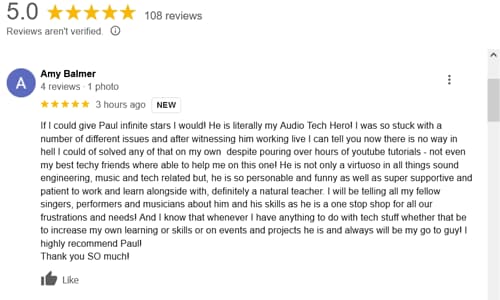
“If I could give Paul infinite stars I would! He is literally my Audio Tech Hero! I was so stuck with a number of different issues and after witnessing him working live I can tell you now there is no way in hell I could have solved any of that on my own despite pouring over hours of YouTube tutorials – not even my best techy friends were able to help me on this one! He is not only a virtuoso in all things sound engineering… but he is so personable and funny as well as super supportive and patient. I highly recommend Paul! Thank you SO much!”
This article was originally published as a field case study on my sister site, Audio Support, and has been adapted for Amazing Audio.
Got a problem like this?
Send me a short clip and tell me what’s going on. I’ll reply in writing by the next UK working day, and it’s free.
Get a free diagnosis