
Case Study: Seamless Xbox and OBS Audio Routing for Streaming
- Client
- A Twitch streamer
- Setup
- Xbox One, Elgato HD60 X, Turtle Beach Stealth 700, OBS
- Problem
- Capture card and headset mic wouldn’t work together, and party chat was missing from the stream
- Fix
- Removed a duplicate Bluetooth connection, gave OBS mic access, and sent party chat down the HDMI cable
The Challenge
A Twitch streamer reached out in deep frustration and booked a Live Diagnostic. He had a great multi-device setup: an HP Elite Mini PC, an Xbox One, an Elgato HD60X capture card, and a high-end Turtle Beach Stealth 700 Gen 3 cross-platform headset. He wanted to stream his gameplay, communicate with his Twitch chat, talk to his friends in Xbox party chat, and play background music simultaneously. While his game video and OBS alerts were working perfectly, his audio routing was a mess. His capture card and his headset microphone simply refused to work together at the same time.
What I did
We connected remotely to untangle the complex web of console, PC, and broadcasting software. Getting a console-and-PC stream working requires a deep understanding of how devices prioritise connections. We identified three distinct misconfigurations that were actively fighting each other:
- Resolving the Hardware Conflict: The Turtle Beach headset includes dedicated USB receivers for both the Xbox and the PC to allow instant switching (CrossPlay). However, we discovered Windows was simultaneously connecting to the headset via traditional Bluetooth. These dual connections were confusing the system. We disabled the Bluetooth connection and forced Windows to rely solely on the USB receiver, restoring the headset’s seamless switching capabilities.
- The Hidden Privacy Block: Even with the headset connected properly, OBS was receiving no microphone signal. This wasn’t an OBS glitch; it was a hidden Windows 11 security setting. The operating system was universally blocking desktop apps from accessing the microphone. I guided the client into the Privacy & Security settings to manually grant microphone permissions to OBS Studio.
- Console Routing (Party Chat): With the microphone fixed, we still needed his Xbox friends’ voices to reach the stream. By default, the Xbox was sending party chat only to his headset. We went into the Xbox Audio settings and changed the Party Chat Output to “Headset and Speakers.” This ingenious trick forces the Xbox to send the chat audio down the HDMI cable into the Elgato Capture Card, feeding it directly into OBS.
The Result
By the end of the session, the streamer had a solid, professional broadcast setup. His headset could instantly switch between the PC and the Xbox using the physical CrossPlay button, his microphone was crisp and clear, and his in-game party audio streamed perfectly to his Twitch audience. As a bonus, we also fixed a video problem: Twitch’s Enhanced Broadcasting option wasn’t compatible with his GPU, so we disabled it in OBS.
Client feedback
The client was thrilled to finally have his complex stream routing completely solved and left this fantastic review:
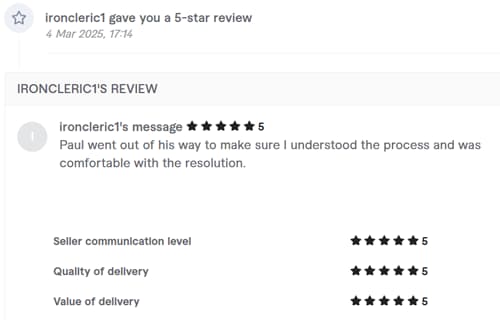
“Five Stars – Paul went out of his way to make sure I understood the process and was comfortable with the resolution.”
This article was originally published as a field case study on my sister site, Audio Support, and has been adapted for Amazing Audio.
Got a problem like this?
Send me a short clip and tell me what’s going on. I’ll reply in writing by the next UK working day, and it’s free.
Get a free diagnosis