
Case Study: Fixing Low Recording Levels for Guided Meditations
- Client
- A guided meditation teacher
- Setup
- Blue Yeti, Audacity, Windows 11, HP PC
- Problem
- Clipped word endings, and breaths silenced by hidden noise reduction
- Fix
- Turned off the Windows and HP audio enhancements, set the Yeti to cardioid and set the gain
The Challenge
A client reached out in need of help with her guided meditation recordings and booked a Live Diagnostic. She was using a Blue Yeti microphone plugged into a Windows 11 PC and recording on Audacity, but the results were unusable. The software was aggressively clipping off the ends of her words, and the natural breath sounds between her phrases were completely silenced by an unwanted noise gate. She couldn’t figure out how to disable the built-in noise cancellation and felt like her technical setup was holding her back from creating her content.
What I did
We jumped on a remote support session and immediately made a test recording. It was clear that the issue wasn’t a faulty microphone or Audacity itself, but rather aggressive, hidden processing applied by the computer’s operating system.
- Disabling OS Filters: Windows 11 and HP computers often come with built-in “audio enhancements” that help a laptop mic sound clean on a Zoom call, but get in the way of professional recording. I guided the client through her Windows sound settings to disable all system-wide audio enhancements, and we disabled the Microphone Noise Reduction inside the HP Audio Center.
- Optimising the Microphone: We discovered the Blue Yeti was set to the wrong polar pattern. I talked her through switching it to “Cardioid” (which rejects background noise and focuses on the speaker’s voice) and explained the best physical distance and angle for the mic.
- Perfecting Gain Staging: I explained gain staging and made sure she had the best settings on her microphone and in Audacity for a strong, clean signal without distortion.
- Streamlining Workflow: To save her time and frustration, I showed her how to change her Windows output settings so she could listen back to her Audacity recordings through her headphones without having to constantly unplug her microphone.
The Result
With the digital noise gates removed and the hardware properly calibrated, the transformation was night and day. The client’s natural breath sounds were finally being captured, and the ends of her words were no longer being clipped. She had a much better understanding of her equipment and the confidence to record her meditations.
Client feedback
The client was thrilled to finally move past her technical roadblock and left me this fantastic review:
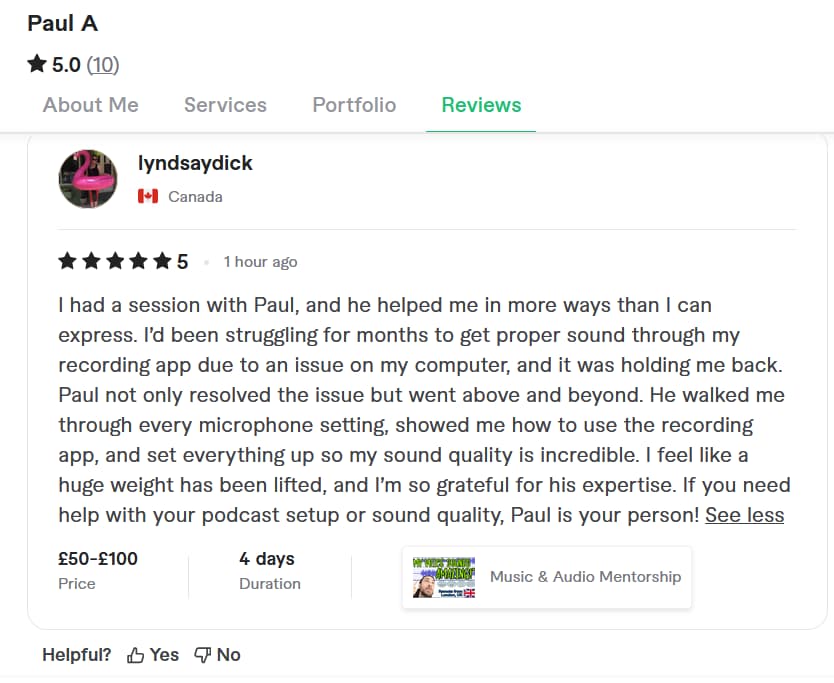
“I had a session with Paul, and he helped me in more ways than I can express. I’d been struggling for months to get proper sound through my recording app due to an issue on my computer, and it was holding me back. Paul not only resolved the issue but went above and beyond. He walked me through every microphone setting, showed me how to use the recording app, and set everything up, so my sound quality is incredible. I feel like a huge weight has been lifted, and I’m so grateful for his expertise!”
This article was originally published as a field case study on my sister site, Audio Support, and has been adapted for Amazing Audio.
Got a problem like this?
Send me a short clip and tell me what’s going on. I’ll reply in writing by the next UK working day, and it’s free.
Get a free diagnosis